Dental Appointment Scheduling Software: What a Good Clinic Calendar Does
What to expect from dental scheduling software: chair and dentist views, blocked time, reminders, online booking requests and the reports that show unused chair time.
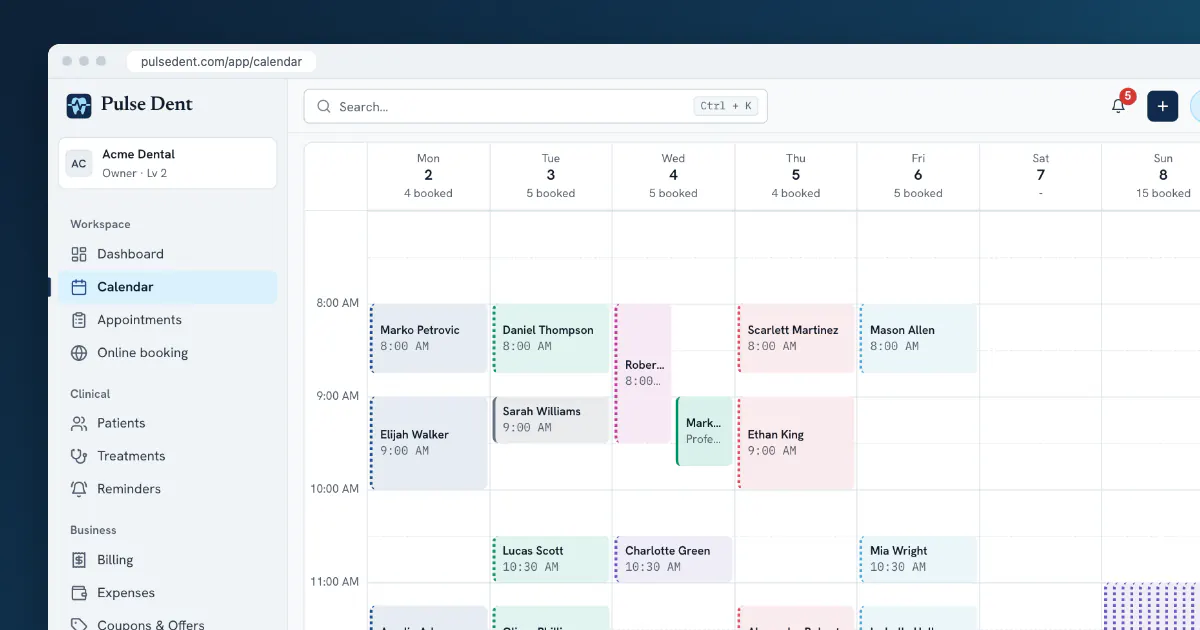
The calendar is usually the most used screen in a dental clinic. Dental appointment scheduling software replaces the paper diary and, when it works, also cuts phone calls, gaps in the day and patients who forget to come. When it works badly, your receptionist keeps a paper backup in a drawer.
This article looks at what a clinic calendar should do and how to judge one. For the people side, see our guides to staff and chair scheduling and reception scripts.
Why general calendars fall short
Many small clinics begin with a shared general-purpose calendar. It works for a while, but it does not know what a chair is, cannot tell you that a root canal needs 90 minutes, and has no connection to the patient's record or invoice. It also will not send a reminder in your clinic's name. Dental scheduling software starts from how a clinic really works: rooms, chairs, dentists, treatments and patients.
What to look for in the calendar itself
Views by chair and by dentist
Reception thinks in chairs and dentists think in their own day. A good calendar offers both, plus day, week and month views. It should remember the layout each person prefers. With more than one clinic, you should be able to see one clinic or all of them.
Booking from a free slot
Clicking a free slot should open the form with the time and chair already filled in, so only the patient and treatment remain. Booking should take seconds, because your receptionist may be doing it with a patient on the phone.
Treatment durations
If each treatment has a default duration, the calendar blocks the right amount of time automatically, and nobody has to remember how long an extraction usually takes. Doctors can override it when they know a case will take longer.
Blocked time
Meetings, breaks and equipment service must be visible as blocks on the chair so nobody books over them. A block should be as quick to add as an appointment, or people will not bother.
Statuses you can read at a glance
Confirmed, arrived, in the chair, finished, cancelled, no-show. These tell the team what is happening right now. Over time, they also show you how often appointments are lost.
Reminders: a small feature with a clear payoff
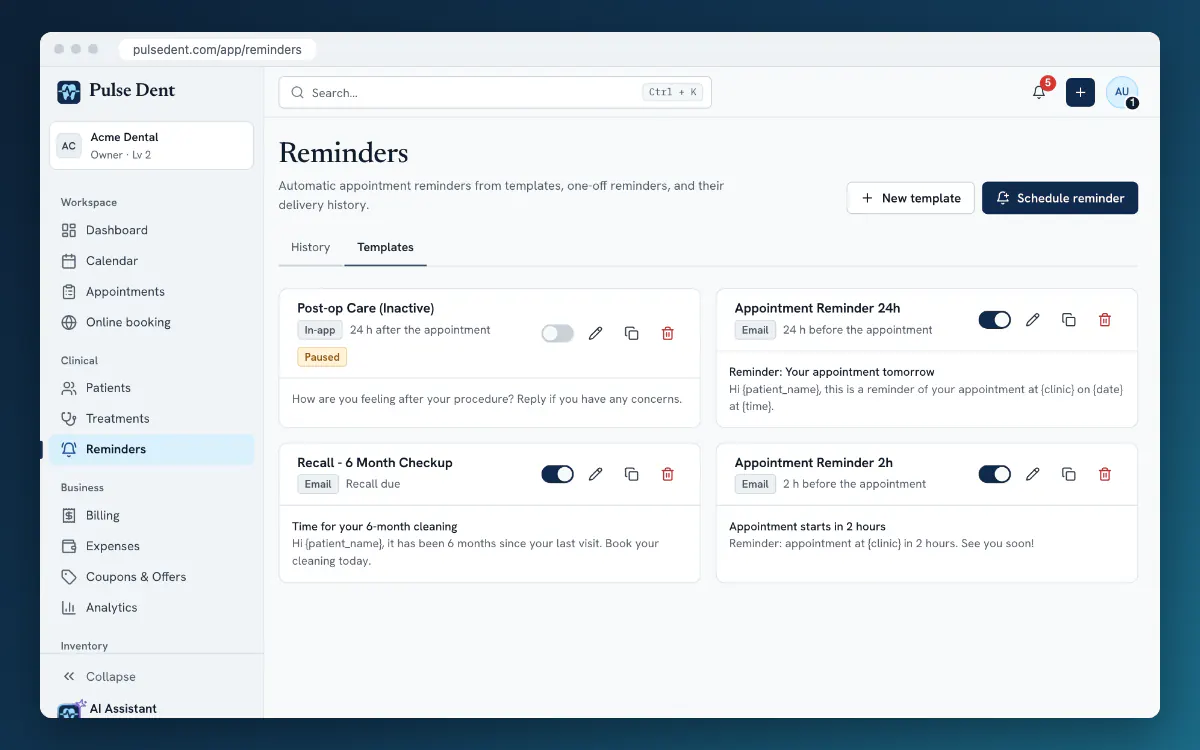
A missed appointment costs a slot that nobody can fill at the last minute. Reminders are one of the cheapest ways to reduce that. Good scheduling software sends them automatically from templates you control. Look for:
- A time setting per template, such as 48 and 2 hours before the visit.
- Messages in your own words and your patients' language, with the patient's name, date and time filled in.
- A delivery history, so you can see what was sent and what failed.
- Different channels, such as email and SMS, if your patients prefer texts.
See how to reduce no-shows for what to say and when to say it.
Online booking: requests or instant confirmation?
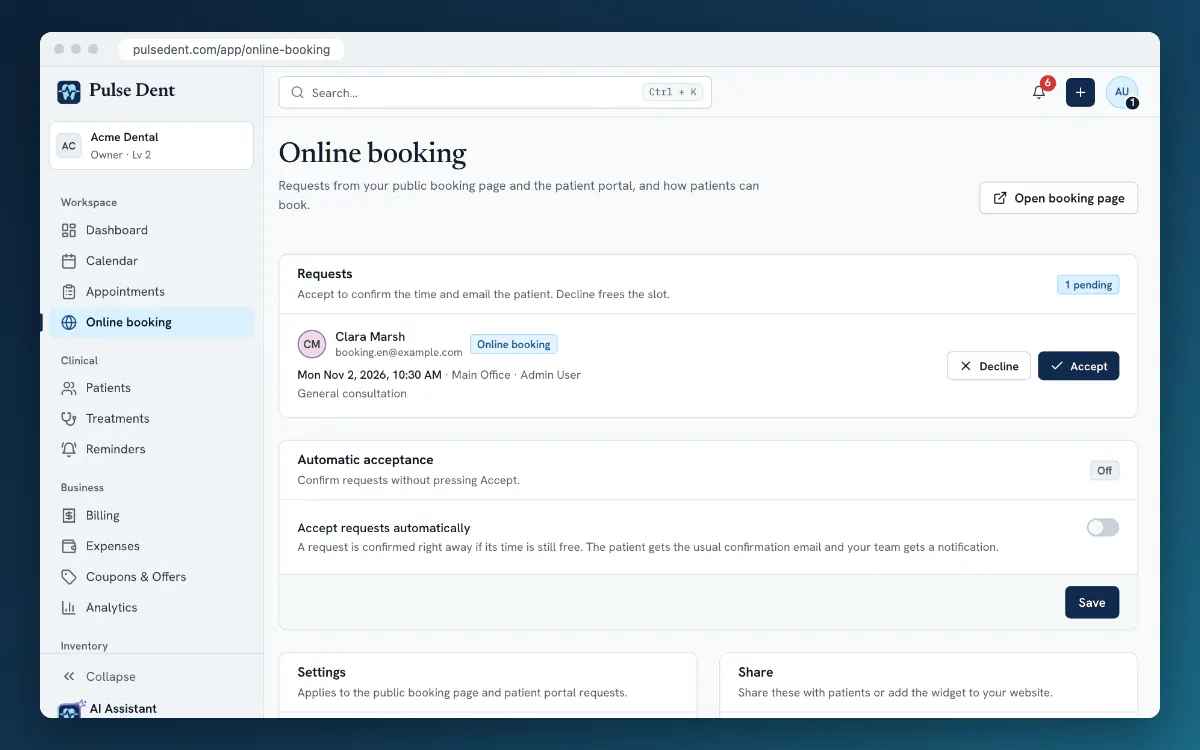
Patients often want to book in the evening, when reception is closed. An online booking page shows free times and takes a request. The main decision is how much to automate:
- Requests you accept: the patient picks a time and someone at the clinic confirms it. You stay in control and can catch a case that needs a longer slot.
- Automatic acceptance: a request is confirmed straight away if the time is still free. Patients get an instant answer and reception has less to do, but you have to trust your rules.
A cautious way to start is with requests, moving to automatic acceptance once you are confident in the setup. Whichever you choose, set a minimum notice and limit how far ahead patients can book. Our guide to online booking covers the setup.
Connections that save the most time
- To the patient record: open the patient's chart and alerts directly from the appointment.
- To treatments: link what was booked with what was done, so that a visit can lead straight to the treatment entry and invoice.
- To your staff: working hours and availability, so that the calendar reflects who is actually in.
The numbers worth checking
Once appointments are data, you can stop guessing about the schedule:
- No-show and late cancellation rate: are reminders working?
- Chair use: how many of your available hours were booked?
- Peak hours: when do you turn patients away, and when do chairs stand empty?
Our article on dental practice KPIs shows how to use these in a monthly review.
A short test before you commit
- Book ten appointments of different lengths on different chairs, and time yourself.
- Move one, cancel one and block out an afternoon.
- Book through the public page on your phone, then accept it on the clinic side.
- Send yourself a reminder and read it as a patient would.
- Open the calendar on the screen at reception, where it will really be used.
Frequently asked questions
Can patients cancel online?
That depends on the product. Where it is possible, set a cancellation window, such as 24 hours before the visit, so that late changes still come through reception.
Will online booking cause double bookings?
It should not if the booking page reads the same calendar that reception uses, and only offers times that are free. Test this in a trial by booking the same slot from both sides.
Do we still need a receptionist?
Yes. The software takes over routine reminders and simple bookings, leaving your team more time for patients who are standing in front of them or who need a real conversation.
Key takeaways
- A dental calendar should understand chairs, dentists and treatment durations.
- Automatic reminders from templates are a quick win.
- Decide whether online requests are accepted by a person or automatically.
- Use the data to find no-shows and unused chair time.
The Pulse Dent calendar works by chair and by dentist in day, week and month views, with blocked time and treatment durations. Reminders run from your own templates. Online booking gives you a public page and a link for each clinic, a website embed, an inbox of requests and optional automatic acceptance. Reminders and automatic acceptance are part of the Advanced plan, which is also what the trial runs on. Take the product tour, compare the plans or start a free 30-day trial.